Streamline Your Debugging: Simplifying Reattaching to w3wp.exe in Visual Studio for D365 Finance and Operation
If you’re working with Dynamics 365 Finance & Operations (D365 F&O) in Visual Studio, you’ve likely encountered the frequent annoyance of reattaching to the correct w3wp.exe process. Every time you start debugging X++ code, you get prompted to select from multiple w3wp sub-processes, often with no clear indication of which one is actually handling the F&O instance. This is time-consuming and frustrating, especially when you’re only interested in the main F&O Application Object Server (AOS) instance.
A simple fix can make your debugging experience much smoother by disabling unnecessary sites in IIS. Here’s how to set it up so that only the AOSService process runs, eliminating the need to guess which w3wp.exe instance to reattach.
Why Multiple w3wp.exe Processes Appear #
When you run D365 F&O on your local machine, several IIS sites might be up by default:
- AOSService: The main D365 F&O application service.
- RetailServer: A retail component if your environment includes it.
- RetailCloudPos: Another retail component related to Point of Sale.
For many developers who aren’t working with retail functionality, only the AOSService process is needed for debugging. Yet Visual Studio will prompt you to choose among all these w3wp processes every time, adding unnecessary friction to the debugging process.
Disabling Unnecessary IIS Sites #
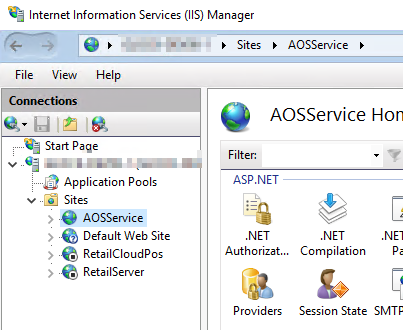
To avoid being prompted, you can stop the retail-related sites under IIS Manager and keep only the AOSService site running. This way, only one w3wp.exe process will spin up when the application is running, and Visual Studio will no longer ask which process to attach to.
Steps to Disable Unnecessary Sites #
- Open IIS Manager:
- Type “IIS Manager” in your Start Menu search and open it.
- Locate the Sites:
- In the left-hand pane, expand your machine name, then click on “Sites” to view all the web applications hosted by IIS.
- Stop Unneeded Sites:
- Right-click on RetailServer and RetailCloudPos and select “Stop” for each.
- Confirm that AOSService remains running.
- Recycle IIS:
- Run the following command in Command Prompt (with administrator privileges) to recycle the IIS service:
iisreset
- Run the following command in Command Prompt (with administrator privileges) to recycle the IIS service:
- Reattach to Debugging in Visual Studio:
- Now, when you go to debug, Visual Studio will detect only the single AOSService process associated with D365 F&O. No more guessing required!
Benefits of This Approach #
- Saves Time: You eliminate the need to select the correct process every time, allowing for faster debugging starts.
- Less Frustration: Without needing to scroll through a list of processes, you can focus on debugging and avoid trial and error.
- Streamlined Workflow: This setup keeps your development environment lean, especially if you’re working in a non-retail environment.
By disabling the unused retail sites, you can streamline your Visual Studio debugging experience and keep your focus where it should be: on the code. Happy debugging!